Here's a puzzle every maker runs into: the gorgeous render in your CAD program looks nothing like the part that comes off the bed. The reason is simple, and a clever new tool is finally closing that gap by showing you the print before the printer ever heats up.
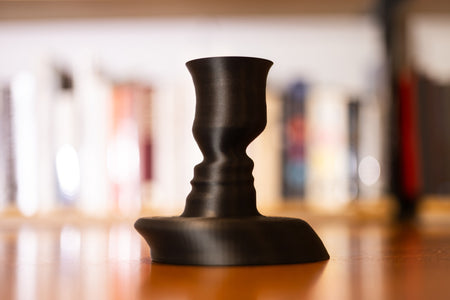
CAD software draws the shape you designed: perfectly smooth curves, flawless surfaces, and not a single seam. Your printer, however, never sees that shape. It follows G-code, a long list of movements and temperatures created by your slicer. Every curve gets built from stacked lines of melted plastic, which is why a sphere shows tiny stair-steps and a flat wall shows fine horizontal ridges called layer lines.
A tool called Extrudio takes a different approach to rendering. Instead of reading the model file, it reads the G-code and sweeps a virtual bead of plastic along each toolpath. The picture it produces includes the same layer lines and stepping you would see on a real part, and it can place the result on a plain studio backdrop or in scenes like a workbench or kitchen. It is handy for anyone who sells prints online and wants product images quickly, though a real photo still looks best.
You can use the same idea even without special software. Open your slicer's layer preview, zoom in close, and scrub through the layers like a flipbook. Look for visible seams, thin walls that might not fill properly, and curved surfaces where steps will be obvious. Changing layer height, seam position, or part orientation takes seconds in the slicer and can save hours of reprinting.
Try it on your printer. Slice one of your favorite models twice, once at a coarse layer height and once at a fine one, and compare the previews side by side. Then print the better-looking version and see how closely reality matches. For more beginner-friendly guides, filament tips, and printable projects, head over to Flarelab.
Frequently asked questions
What is G-code in 3D printing?
G-code is the list of instructions your slicer creates for the printer. It tells the machine where to move, how fast to go, how hot to run, and how much plastic to push out, one tiny step at a time.
Why do slicer previews look different from CAD renders?
A CAD render shows the ideal shape you designed. A G-code preview shows the path the nozzle will actually follow, so you see layer lines, seams, and stair-stepping on curves that CAD hides.
Can a render replace a real photo of my print?
Not completely. A real photo of a finished part will always be more convincing. A render is handy for quick mockups, testing color ideas, or showing a design before you spend hours printing it.
How do I make my layer lines less noticeable?
Use a smaller layer height, slow down outer walls, and orient curved surfaces so the steps run in the least visible direction. Light sanding or a coat of primer can smooth things further.
Inspired by reporting from Hackaday. Rewritten and expanded by Flarelab. View the original story.